Integrate your CRM
Run tenant screening from your CRM: set up three things once in Carousel, then five steps, all from your server.
What you’ll build
A “Screen applicant” button
On a rental application in your CRM. Carousel emails the applicant their link, and they complete their checks on Carousel.
A status that updates itself
Invited, in progress, report ready — your application follows the applicant.
A “View report” button
It opens Carousel’s report, with its PDF, inside your CRM. Your users don’t need a Carousel login.
This guide covers tenant screening: someone applying to rent. Your CRM keeps two ids per application, yours and Carousel’s; the applicant’s data stays with Carousel.
Your company uses one Carousel account for the integration, however many customers you serve. Every screening, key, webhook and allowed site lives in it, and it pays for screenings in tokens — or the applicant pays at checkout, chosen per send. Your own CRM decides which of your users sees which application.
Your server keeps your customers apart. A key that reaches every workspace sees every customer’s screenings and events, and a key that shows reports can make a view link for any of their reports. A key can be limited, though: give each customer a workspace of their own and make their key for that workspace only. It then reaches no other customer’s screenings, and it can’t file in Private, so name the customer’s workspace or building on every send. The webhook can’t be limited — the account has one, and it gets every customer’s events — and neither can a developer in Developers → Access. So check the customer before every read and every view link, and make externalId unique across customers (acme-APP-1042). Your customers share the account’s token balance, its 30 sends a minute and its 25 allowed sites. Each invitation email carries your account’s business name, and replies go to the account’s owner — send "delivery": "none" to send the link in your own email.
A customer who already screens in Carousel can share a workspace with whoever owns your company’s account instead, from its Team panel in Carousel. Your keys that reach every workspace you can use — the owner’s, not a developer’s — then reach it too, at the role the customer gave: Can screen and Can spend … tokens send there, View only only reads (a send is 403 not_allowed). GET /workspaces lists it after your own, with its account, your role and canSend. What you send there is filed in their account and billed as Carousel bills you as a member: their tokens when they let you spend them, yours otherwise. Your view links show those reports on your own allowed sites, and stop once the share ends. The events of screenings your keys send there come to your stream and webhook while you can still open them; screenings the customer sends themselves show in GET /screenings, but send you no events yet. Your externalIds stay your own: a customer’s ids never match yours.
Set up once, in Carousel
Three settings, all under your initials (top right) → Developers at app.oncarousel.com.
Make a key
Do A, B and C in your company’s Carousel account, the one your screenings and tokens are on. Whoever signed it up owns it. Developers at your company work on it from their own sign-in: the owner adds them in Developers → Access. Nothing is emailed: they open Developers, choose Accept, then pick the company account under Account at the top.
Keys: name it, choose which workspaces it reaches — keep Every workspace you can use on (for a developer, Every workspace in this account), or switch it off and tick the workspaces it’s for — switch on Show reports in my app, and click Create key. Both are set when a key is made, so make a new key to change them. A developer’s live key can show reports once the owner switches on Can see applicant data for them; switching it off later doesn’t stop keys already made, so revoke those under Keys. Switch on Test key too while you build — no emails, no charges. Keep the key on your server: every request sends it as Authorization: Bearer ….
Set your webhook
Webhook: an HTTPS address on your server. Carousel sends each event there (step 3). Copy the signing secret it shows once — step 3 checks each delivery with it. An account has one webhook address. It gets up to 300 deliveries a minute, a few at a time; after a failed delivery the rest wait a minute. If you send more than a few screenings a minute, read GET /events as your main feed and treat each delivery as the prompt to read it. A test key’s events aren’t pushed to it: read them with GET /events and the test key, and send your webhook a signed sample with POST /webhook/test.
Allow your site
Allowed sites is the list of sites whose pages may show Carousel’s report in a frame (step 5) — the site your users are on when they click “View report”, not your API server. Add each as https:// and its host, like https://app.your-company.com, with a port if it has one; a staging site or another domain is an entry of its own. While you build, add http://localhost:3000 or http://127.0.0.1:3000 with your port — the only addresses that may be http, and only for a test key’s links: a live report shows on your own https site, not on localhost or an IP address. No wildcards and no paths — paste any page’s address and its site is kept. Up to 25. One list serves test and live keys. A change applies from the next view, with no redeploy. On a site that isn’t listed, the frame says “This report can’t be shown on this site”, and the link stays unused — when your page sends its address, as browsers do by default. The page that loads the link must be on a listed site.
Part 1 · Send a tenant screening
Step 1 · Send it when your user clicks “Screen applicant”
Pick the checks, give the applicant’s email, and put your application’s id in externalId.
curl -X POST https://app.oncarousel.com/api/v1/screenings \
  -H "Authorization: Bearer $CAROUSEL_API_KEY" \
  -H "Content-Type: application/json" \
  -H "Idempotency-Key: APP-1042-send-1" \
  -d '{
    "checks": ["id", "credit", "court_qc", "penal_qc", "bank"],
    "applicant": { "email": "nora@example.com" },
    "region": "CA",
    "externalId": "APP-1042"
  }'
Carousel emails the applicant their link. This example has no property, so it’s filed in Private: its report has no rent to weigh income against, and only the account’s owner can open its portalUrl. To file it under the rental, add the building once — POST /buildings with its address, units and rent; repeating it is safe — and send its building and unit ids instead of region. Every field you can send, with its options:
| Field | Options |
|---|---|
checksOne of checks or workflow | The ids of exactly one combination of checks, in any order — for example ["id", "credit"], or in Québec ["id", "credit", "court_qc", "penal_qc", "bank"]. The ids — Canada, Québec: id, credit, court_qc, penal_qc, criminal, bank. Canada, rest of Canada: id, credit, court_roc, criminal, bank. US: id, credit, records, bank. Québec’s court checks are accepted for a building anywhere; a building in Québec refuses court_roc. Every combination: seven in Canada, three in the US.Values from: Checks and combinations · GET /checks |
workflowOne of checks or workflow | A custom workflow’s id, in place of checks.Values from: workflows in GET /checks · Custom workflows |
applicantRequired | { "email": "…" } — an email address, up to 254 characters. No phone or name. |
regionRequired with no workspace or building | CA or US. On its own, files it in your Private pool — not with a key limited to some workspaces; with a workspace or building, it must match theirs.More: Workspaces and buildings |
workspaceOptional | A workspace’s id: files it there, with no building.Values from: GET /workspaces · Workspaces |
buildingOptional | A building’s id: files it under that building, in its workspace.Values from: GET /buildings, POST /buildings · Buildings and units |
unitOptional, with building | A unit’s id in that building.Values from: Buildings and units |
payerOptional | tokens (the default for checks): your token balance. renter: the applicant pays at checkout. A custom workflow’s payer is fixed.More: Tokens and billing |
deliveryOptional | email (the default): Carousel emails the link. none: you hand the applicant applicantLink yourself.More: The answer |
externalIdOptional | Your own id for this record, up to 200 characters. On every event. More: Find by your own id |
Idempotency-KeyOptional header — recommended | Any string up to 255 characters, new for each send you mean. A repeat within 24 hours returns the first answer and sends nothing. More: Retrying safely |
The same table, with more on each field: Send and follow screenings.
Step 2 · Save Carousel’s id with your application
Keep the answer’s id next to your application — step 4 uses it.
201 Created
{
  "id": "6f0c2d1e-5b7a-4c8e-9f10-2a3b4c5d6e7f",
  "status": "invited",
  "externalId": "APP-1042"
}
Part 2 · Track it
Step 3 · Update the status when an event arrives
Carousel sends each event to your webhook (B), with your externalId — never the applicant’s data. Check its signature with your signing secret (the whsec_… string, as it is), and answer with any 2xx within 10 seconds. Deliveries can come twice and out of order: the Carousel-Delivery header is the same on every retry, so ignore one you’ve handled, and apply an event only if its seq is higher than the last one you applied for that screening — then a delivery that arrives late never moves a status back, and a screening’s screening.started is never numbered after its end. Events and webhooks shows how.
POST https://crm.your-company.com/webhooks/carousel

{
  "id": "0d6e…",
  "seq": 1042,
  "type": "screening.completed",
  "createdAt": "2026-10-03T18:42:10.512Z",
  "data": { "screening": { "id": "6f0c2d1e-…", "externalId": "APP-1042" } }
}
Find the application by externalId. An event whose externalId is null is a screening someone added in Carousel, such as a co-applicant: match it through the application.* events, whose data.screenings lists every screening on the application. Those come only when someone in Carousel changes the application’s stage, adds a note or moves it; until then, nothing in the API ties that screening to yours. Every screening event Carousel sends, and what to show:
| Event | What happened |
|---|---|
screening. | The screening was created and its applicant link issued. In your CRM: Invited |
screening. | Carousel’s mail service accepted the invitation email. It isn’t proof it arrived: a bounce after this isn’t reported. |
screening. | Carousel’s mail service didn’t accept the invitation email when it was sent — hand the applicant the link yourself. Carousel tries again for 24 hours, so screening.invitation_delivered can still follow.In your CRM: Email not sent — send the link yourself |
screening. | A reminder was sent to the applicant. |
screening. | The applicant opened the application and started. In your CRM: In progress |
screening. | One check reached its end: done or stopped. GET /screenings/{id} says which.In your CRM: One more check done — data.check names it |
screening. | Every check is done — the report is ready. In your CRM: Report ready |
screening. | The report was opened: by your team in Carousel (data.via is carousel), or in your platform through a view link (embed, with data.viewer). Printing or downloading its PDF counts.In your CRM: Viewed, and by whom |
screening. | The screening was cancelled; nothing more is charged. In your CRM: Cancelled |
screening. | The applicant never started within 30 days; the invitation expired. In your CRM: Expired |
A quick screening can go straight to screening.completed, with no screening.started. Carousel also sends application, building and balance events: Event types.
No webhook yet? Ask whenever you like: GET /api/v1/screenings?externalId=APP-1042.
Part 3 · Show the report
Step 4 · When your user clicks “View report”, ask for a link
From your server, after checking this user may see this application. viewer says who they are, for Carousel’s log. Ask for a new link each time the report is opened.
curl -X POST https://app.oncarousel.com/api/v1/screenings/6f0c2d1e-…/view-links \
  -H "Authorization: Bearer $CAROUSEL_API_KEY" \
  -H "Content-Type: application/json" \
  -d '{ "viewer": "jane@your-company.com" }'

201 Created
{
  "url": "https://app.oncarousel.com/embed/r/kV9q2xR7…",
  "expiresAt": "2026-10-06T15:02:00.000Z"
}
If it fails: 403 view_links_not_allowed — the key wasn’t made with Show reports in my app (A) or Read applicant results; 404 not_found — the screening isn’t one this key reaches. The rest: Errors and limits.
Step 5 · Show it in an iframe
On a page of a site you allowed (C). Use the link straight away: it works once, within 2 minutes. The report then stays open for 30 minutes, with its PDF.
<iframe src="{url}" title="Screening report"
        style="width:100%; height:100vh; border:0"></iframe>
After 30 minutes the frame says the view has ended and tells your page — show an “Open again” button that repeats step 4. A link that was already used, or is over 2 minutes old, shows the same words without telling your page, so keep the button there anyway. Details: Show reports in your platform.
Two sides must agree. Carousel’s side is your allowed sites (C). Your side: if your page sends a Content-Security-Policy, it must allow Carousel’s frame — frame-src https://app.oncarousel.com. Don’t sandbox the iframe. If the frame sits inside another frame, that outer page’s site must be allowed too. Give the report room: it shows two columns from 900 px wide.
If the report doesn’t show:
| You see | What to do |
|---|---|
| “This report can’t be shown on this site”, or the browser says it refused to connect | This page’s site isn’t in Allowed sites (C) — or it’s localhost and the key is live. Add the site exactly — https, host and port — then ask for a new link. |
| A blank frame, and a Content-Security-Policy message in your browser’s console | Your page’s policy: add frame-src https://app.oncarousel.com. |
| “This view has ended” straight away | The link was already used, or is older than 2 minutes. Ask for a new link (step 4) every time. |
| “This report opens inside your platform” | The link was opened in a tab of its own. It only opens in a frame on your page. |
| “Too many requests” | One view was reloaded too often (60 times in 10 minutes). Ask for a new link (step 4). |
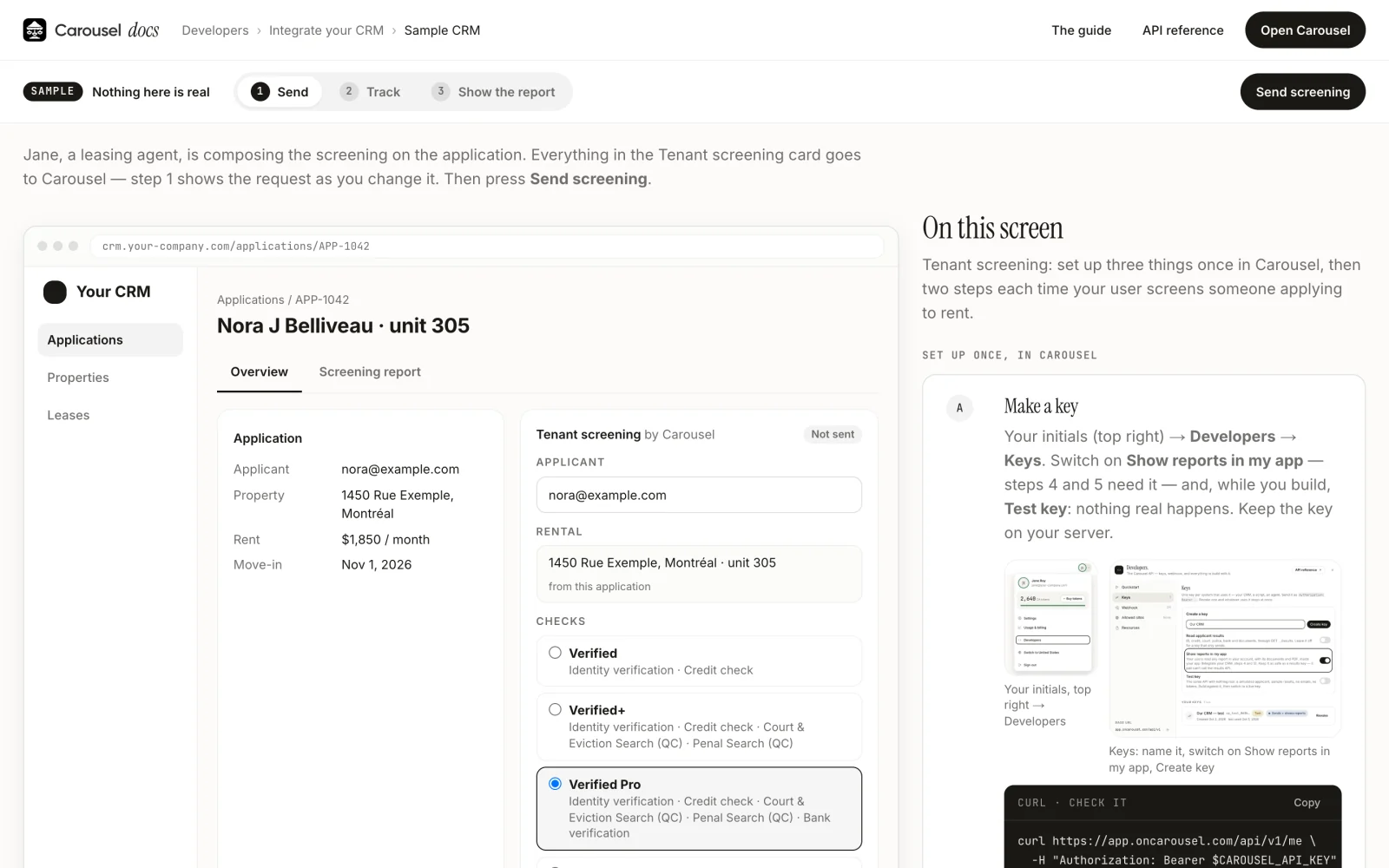
Try it in a sample CRM
Click through it all — the setup, send, track, then Carousel’s real report — with every request shown. It opens on a page of its own, full width.
Before you go live
- A live key (not a test key) with Show reports in my app, on your server only.
- Your webhook address set in Carousel, and each delivery’s signature checked.
- Your live site’s address under Allowed sites — localhost shows test reports only.
- Your server checks which of your customers an application belongs to before every view link and every read.
- If your site sends a Content-Security-Policy, it allows
frame-src https://app.oncarousel.com. Don’t sandbox the iframe.
Every detail, part by part: Send and follow screenings · Events and webhooks · Show reports in your platform.
Show a report only to the people in your CRM who need it to assess that application. See Carousel’s Privacy Policy and Terms. The Tenant Screening Acceptable Use Policy applies to your own systems and connected assistants too.